5 Heart Animations Using .NET MAUI

Summarize with AI:
Try your hand at some simple, engaging animations in .NET MAUI. Here are five heart animations you can master today!
I’m a big fan of animations that capture the user’s attention—the kind that don’t just make an app look pretty, but also have the ability to guide users and clearly communicate what’s happening. When used correctly, animations become a key part of design and usability. ✨
In .NET MAUI, we have simple yet very powerful animations that allow us to add that dynamic touch without unnecessary complexity. With just a few lines of code, we can transform common interactions into more natural and enjoyable experiences.
I genuinely love this article, because in it we’ll learn how to create five super-creative animations that elevate our application and showcase the beautiful and powerful things we can achieve using the basic animations available in .NET MAUI 🚀
1. Heart ECG Monitor
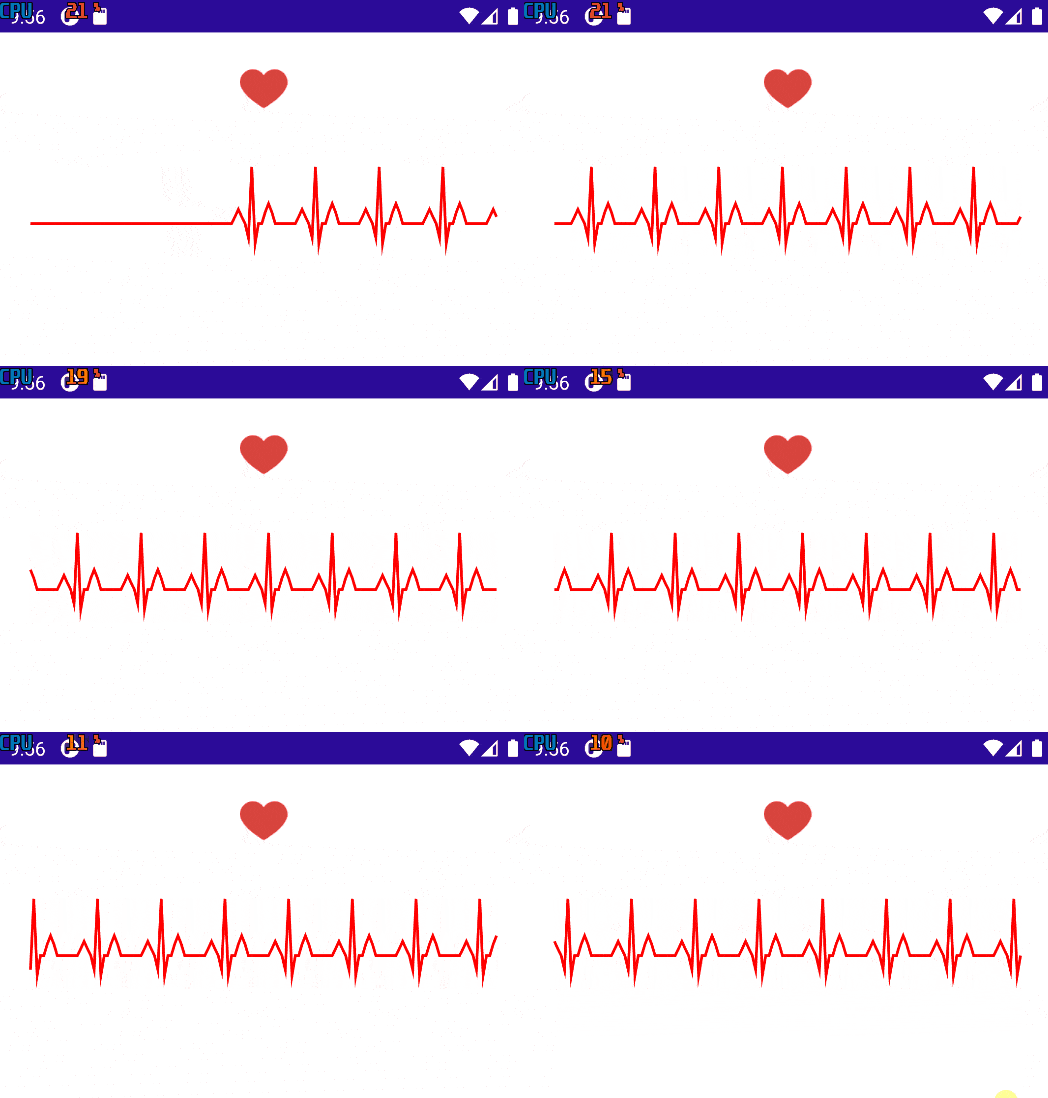
OMG😱😱😱, can we do this in .NET MAUI?? Yess!!! 🤩 (This is my favorite animation, hahaha).
Let’s create an ECG monitor–style animation, where we can see the movement of the line. To achieve this, we’ll work with both XAML and code-behind.
Let’s start with the XAML. 👇
The design includes a heart and some lines that simulate the monitor’s movement. Both elements will be vertically aligned, so the layout that will contain our design is a VerticalStackLayout.
Inside this layout, we’ll add:
➖ An Image for the heart
➖ And a GraphicsView to draw and animate the monitor lines
<VerticalStackLayout Padding="24" Spacing="16"

    <!-- Heart -->
    <Image x:Name="Heart"
    Source="redheart"
    WidthRequest="35"
    HeightRequest="35"
    HorizontalOptions="Center" />

    <!-- ECG -->
    <GraphicsView x:Name="Ecg"
    HeightRequest="120" />

</VerticalStackLayout>
Perfect! Now we’ll continue with the code that brings the monitor and the heart to life. For the purpose of this example, we’ll add everything directly in the code-behind. And how do we locate the code-behind? 🤔 For example, if your XAML file is called MainPage.xaml, the code-behind is in MainPage.xaml.cs.
Variable Declaration
➖ WindowSize: This variable allows us to control how many heartbeats can be displayed on the screen at the same time. The higher this value is, the more heartbeats will be visible before they move out of view. As a result, a larger WindowSize makes the heartbeat appear slower on the monitor.
➖ Beat: We define an array to represent a complete heartbeat. Values close to zero represent the baseline, while higher values represent the peaks.
➖ _samples: This variable represents what should be displayed on the screen. Initially, we fill it with zeros to display a flat line.
➖ EcgDrawable: This holds the object responsible for drawing the monitor signal.
➖ _i: Finally, we have the index that will be used to iterate through the Beat array.
// Variables

const int WindowSize = 140;
static readonly float[] Beat =
    {
	    0,0,0, .12f,.25f,.12f, 0, -.25f,1f,-.35f, 0,0, .20f,.35f,.20f, 0,0,0,0
	};

readonly List<float> _samples = Enumerable.Repeat(0f, WindowSize).ToList();
readonly EcgDrawable _drawable;
int _i;
Continuing with the Constructor
Once we have all the required variables defined, the next step is to connect the components and start the animation inside the constructor.
First, we create an instance of EcgDrawable and assign it to the GraphicsView. This allows the view to know how to render the ECG signal based on the provided samples.
Next, we configure a timer using the Dispatcher. This timer is responsible for updating the signal at a regular interval, which helps us achieve a smooth and continuous animation.
On each timer tick:
- The next value from the heartbeat pattern is added to the samples list.
- The window size is preserved by removing the oldest value.
- The
GraphicsViewis invalidated to force a redraw.
Finally, we start the timer, and the heart monitor animation begins automatically.
In code, it looks like this:
public HeartAnimations()
{
    InitializeComponent();
    _drawable = new EcgDrawable(_samples);
    Ecg.Drawable = _drawable;
    var t = Dispatcher.CreateTimer();
    t.Interval = TimeSpan.FromMilliseconds(16);
    t.Tick += (_, __) =>
    {
	    _samples.Add(Beat[_i++ % Beat.Length]);
    if (_samples.Count > WindowSize) _samples.RemoveAt(0);
	    Ecg.Invalidate();
    };
    t.Start();
}
Finally, let’s add the EcgDrawable class.
This class is responsible for visually rendering the ECG signal inside the GraphicsView component. It takes the list of values that represent the heart signal and transforms them into a continuous line, automatically calculating:
- The vertical position of the signal
- The horizontal distribution of each point
In code, this translates to the following:
class EcgDrawable(IReadOnlyList<float> samples) : IDrawable
{
    public void Draw(ICanvas c, RectF r)
    {
	    if (samples.Count < 2) return;
		    c.StrokeColor = Colors.Red;
		    c.StrokeSize = 2;
	    var baseline = r.Top + r.Height * .55f;
	    var amp = r.Height * .35f;
	    var dx = r.Width / (samples.Count - 1);
	    var p = new PathF();
	    p.MoveTo(r.Left, baseline - samples[0] * amp);
	    for (int i = 1; i < samples.Count; i++)
	    p.LineTo(r.Left + i * dx, baseline - samples[i] * amp);

    c.DrawPath(p);
    }
}
And that’s it! 🎉 We’ve just finished building the Heart ECG Monitor animation. See? It wasn’t that hard! I encourage you to try it out and experiment with it on your own.
Now, let’s move on to the next animation! 🚀💚
2. Heart Ripple Pulse
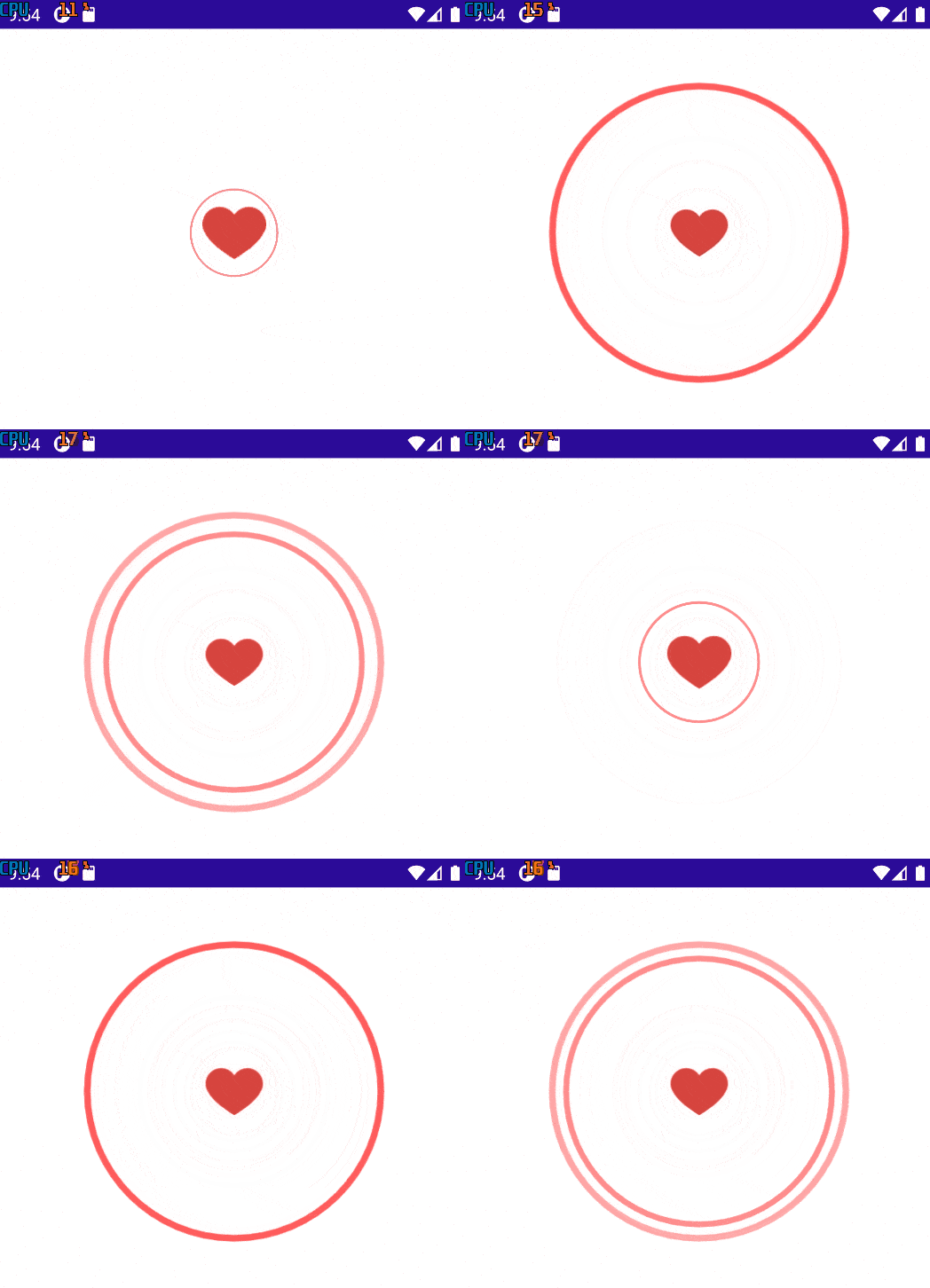
This animation represents the heartbeat and the waves generated by that pulse.
Here, we combine several simple animations and use a Grid as the main container to overlay all the elements in the same space, making them feel like a single, unified animation.
We’ll start with the XAML, where we will define:
➖ Two Border components in red color, representing the ripple waves.
➖ A heart image, which will act as the main element at the center.
<Grid HorizontalOptions="Center"
    VerticalOptions="Start"
    Margin="0,100"
    WidthRequest="140"
    HeightRequest="140">

    <Border x:Name="Ripple1"
	    Stroke="Red"
	    StrokeThickness="3"
	    Opacity="0"
	    Scale="0.2"
	    StrokeShape="RoundRectangle 999" />

    <Border x:Name="Ripple2"
	    Stroke="Red"
	    StrokeThickness="3"
	    Opacity="0"
	    Scale="0.2"
	    StrokeShape="RoundRectangle 999" />

    <Image x:Name="Heart"
	    Source="redheart.png"
	    WidthRequest="48"
	    HeightRequest="48"
	    HorizontalOptions="Center"
	    VerticalOptions="Center" />

</Grid>
To bring our animation to life, we’ll work with the OnAppearing and in a method called Loop.
➖ OnAppearing: To explore something different, this time we’ll work with the OnAppearing method (✍️ please make sure to declare the _running bool variable).
When the screen appears, we call the Loop method, which is responsible for running the animation cycle.
protected override void OnAppearing()
{
    base.OnAppearing();
    _running = true;
    _ = Loop();
}
➖ Loop(): This is where the magic happens. ✨ Inside this method:
- We trigger the heart pop, a subtle scale effect on the heart
- We animate the two circular lines to create the ripple effect
- We use a delay to give each animation enough time and make them clearly distinguishable
Thanks to this approach, we achieve a smooth, easy-to-follow and well-synchronized animation.
In code, this would look like the following:
async Task Loop()
{
    while (_running)
    {
    // Reset
    Ripple1.Opacity = Ripple2.Opacity = 0;
    Ripple1.Scale = Ripple2.Scale = 0.2;
    Heart.Scale = 1;

    // Heart pop
    _ = Heart.ScaleTo(1.12, 90, Easing.CubicOut)

    .ContinueWith(_ => MainThread.InvokeOnMainThreadAsync(
    () => Heart.ScaleTo(1.0, 120, Easing.CubicInOut)));

    // Ripple 1
    _ = Task.WhenAll(
    Ripple1.FadeTo(0.45, 60, Easing.CubicOut),
    Ripple1.ScaleTo(1.8, 700, Easing.CubicOut)
    ).ContinueWith(_ => MainThread.InvokeOnMainThreadAsync(
    () => Ripple1.FadeTo(0, 250, Easing.CubicIn)));

    // Ripple 2
    await Task.Delay(120);
    _ = Task.WhenAll(
    Ripple2.FadeTo(0.35, 60, Easing.CubicOut),
    Ripple2.ScaleTo(1.8, 700, Easing.CubicOut)
    ).ContinueWith(_ => MainThread.InvokeOnMainThreadAsync(
    () => Ripple2.FadeTo(0, 250, Easing.CubicIn)));

    await Task.Delay(650);
    }
}
And that’s it! Let’s keep going and jump into the next animation! 🚀💚
3. Blinking Heart
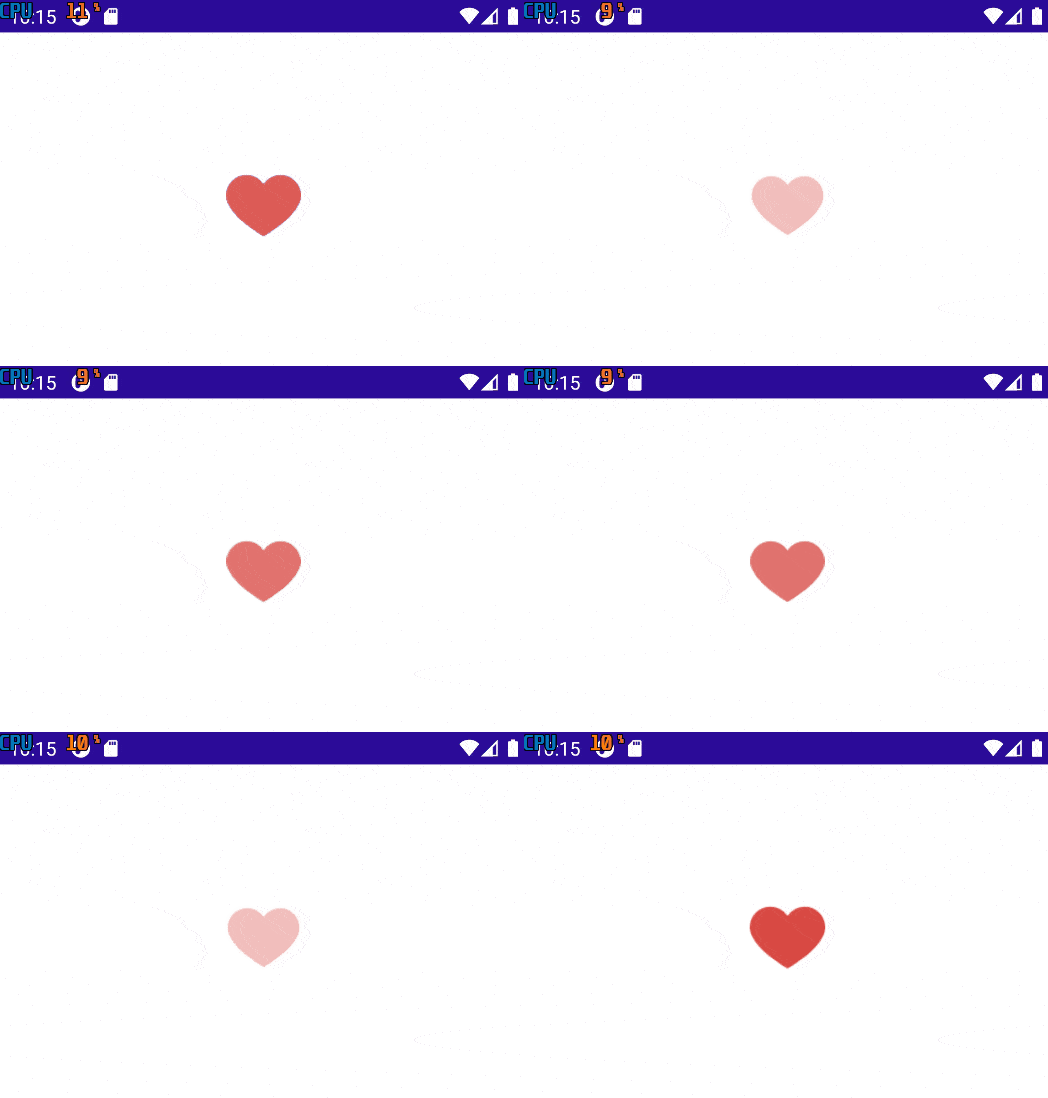
In this animation, we’ll make a heart blink in a subtle and elegant way. We’ll start with the XAML. In this case, the structure is very simple, since we only need a single heart image, centered on the screen. From this single element, we’ll build the entire animation.
<Image x:Name="Heart"
    Source="redheart.png"
    WidthRequest="56"
    HeightRequest="56"
    HorizontalOptions="Center"
    VerticalOptions="Center" />
We’ll continue working with OnAppearing to start the animation, and additionally we’ll create a method called BlinkLoop() to handle the animation logic. This one is composed of FadeTo and ScaleTo animations, which allow us to play with the icon’s opacity and size, creating the blinking effect.
In code, it would look like the following:
protected override void OnAppearing()
{
    base.OnAppearing();
    _running = true;
    _ = BlinkLoop();
}
async Task BlinkLoop()
{

    while (_running)
    {
	    await Task.WhenAll(
	    Heart.FadeTo(0.35, 220, Easing.CubicInOut),
	    Heart.ScaleTo(0.95, 220, Easing.CubicInOut)
	    );

    await Task.WhenAll(
	    Heart.FadeTo(1, 220, Easing.CubicInOut),
	    Heart.ScaleTo(1, 220, Easing.CubicInOut)
	    );
    }
}
All set! Ready to move on to the next animation ✨
4. Rotating Heart
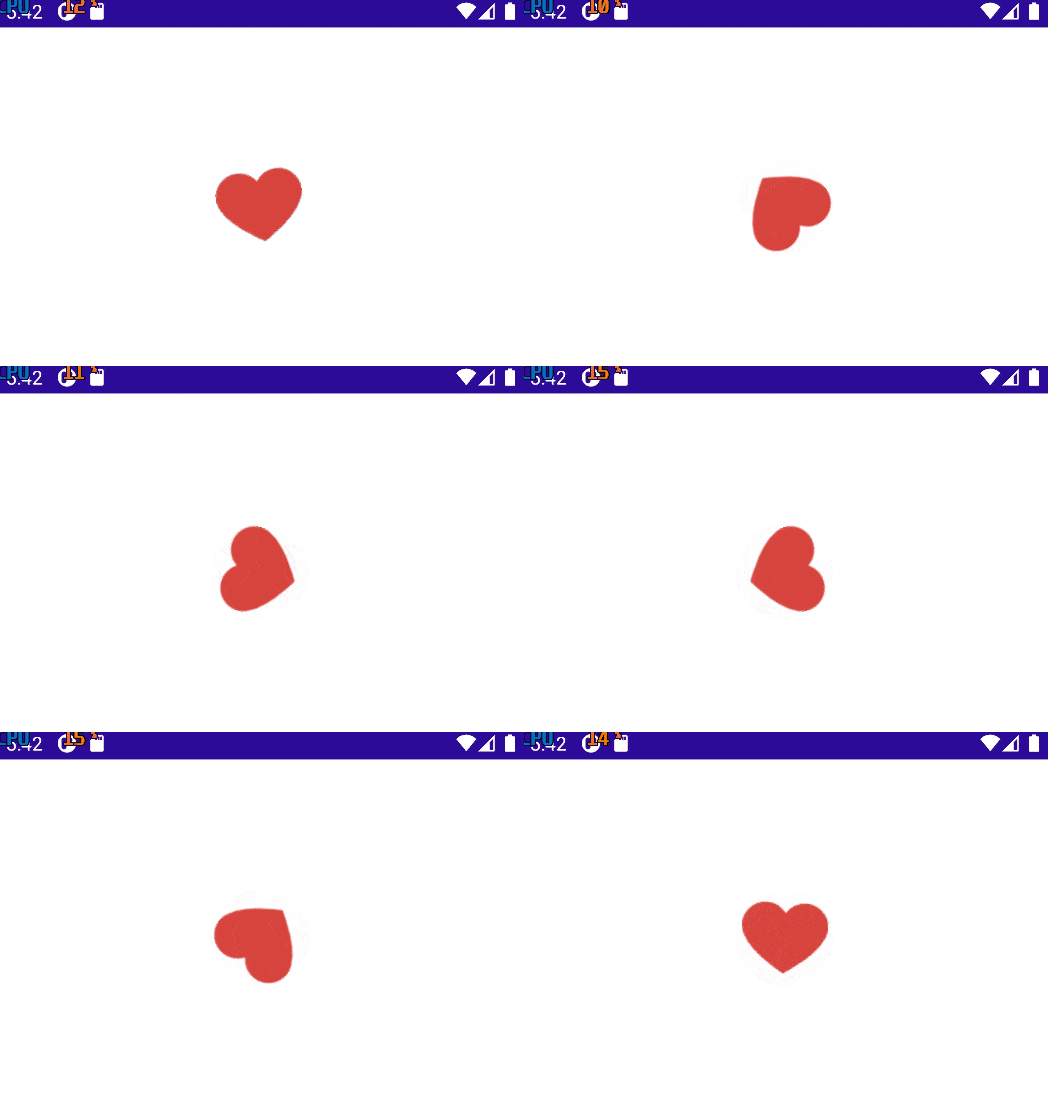
Now we’ll create an animation where our heart rotates. ❤️ This type of animation is very useful, for example, as a loading indicator in your screens.
To get started with the implementation, we’ll begin by adding the Image in XAML, as shown below:
<Image x:Name="Heart"
    Source="redheart.png"
    WidthRequest="64"
    HeightRequest="64"
    HorizontalOptions="Center"
    VerticalOptions="Center" />
And in the code-behind, it’s time to bring the heart to life! ❤️
We’ll use the OnAppearing method, and for the animation (✍️ please make sure to declare the _isRunning bool variable), we’ll rely on RotateTo(), as shown below:
protected override async void OnAppearing()
{
    base.OnAppearing();
    _isRunning = true;

    while (_isRunning)
    {
	    await Heart.RotateTo(360, 4000, Easing.Linear);
	    Heart.Rotation = 0;
    }
}
Done! Let’s bring the next animation to life 💖✨
5. Jumping Heart💓
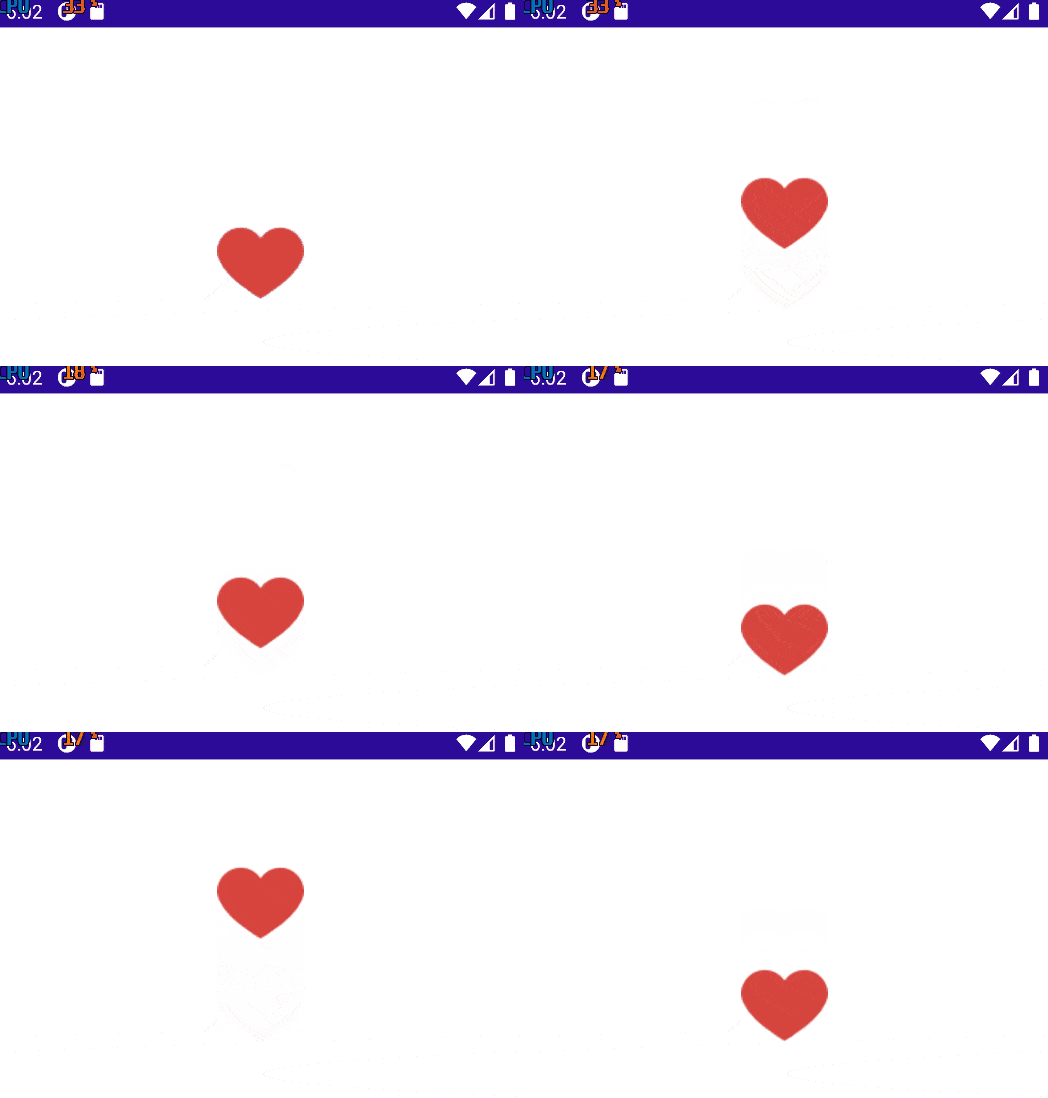
For our final animation, we’ll make the heart jump up and down in a continuous loop.
This animation also works great as a loading indicator, adding a playful touch to your screen.
Let’s start by adding the Image to the XAML:
<Image x:Name="Heart"
    Source="redheart.png"
    WidthRequest="64"
    HeightRequest="64"
    HorizontalOptions="Center"
    VerticalOptions="Center" />
In the code-behind, we’ll create the animation by working with TranslationTo and the TranslationY methods, as shown below:
protected override async void OnAppearing()
{
    base.OnAppearing();
    _isRunning = true;
    Heart.TranslationY = -120;

    while (_isRunning)

    {
	    await Heart.TranslateTo(0, 0, 600, Easing.CubicOut);
	    await Heart.TranslateTo(0, -12, 120, Easing.CubicInOut);
	    await Heart.TranslateTo(0, 0, 120, Easing.CubicInOut);
	    await Heart.TranslateTo(0, -120, 450, Easing.CubicIn);
    }
}
And that’s all—thanks for building this with me! 🤩🚀
Conclusion
And that’s it! 🙌 We’ve successfully created five awesome, ready-to-use animations with .NET MAUI. Each one was designed to be easy to implement, demonstrating just how powerful even the most basic animations can be when used correctly.
I hope this article has inspired you and sparked new ideas for incorporating animations into your current and future .NET MAUI projects ✨
As always, if you have any questions or would like me to explore any of these animations in more detail, feel free to leave a comment — I’d be happy to help! 💚
See you in the next article! 🙋♀️

Leomaris Reyes
Leomaris Reyes is a software engineer from the Dominican Republic specializing in mobile development. She is a 7-time Microsoft MVP and actively builds mobile applications while sharing practical knowledge through technical articles and developer-focused content.
Through her work, she explains programming concepts, developer tools and real-world development practices to help developers grow in their careers.
You can follow her on Instagram and TikTok at @leomarisreyes.dev, read her articles on AskXammy, and connect with her on LinkedIn, where she shares tutorials, insights and resources for developers.
Related Posts
Comments
All articles
Topics
Web MobileMobile
Desktop
Design
Productivity
People